
Phone app
Run the day's work from your phone
DMAI Pro runs on your business computer, and the phone app connects you to it from anywhere. Reply to chats, approve the assistant's suggestions and keep track of tasks and payments; everything is done and kept on that same computer.
How it works
The work happens on the computer
Whatever you do on the phone is done at once on the business computer, by the same code the panel uses, so the panel and the phone never disagree. The computer must be on and online.
No app store
The app opens from your computer's fixed address and goes on the phone's home screen: Safari on iPhone, Chrome on Android. No App Store or Google Play needed.
Your data stays on the computer
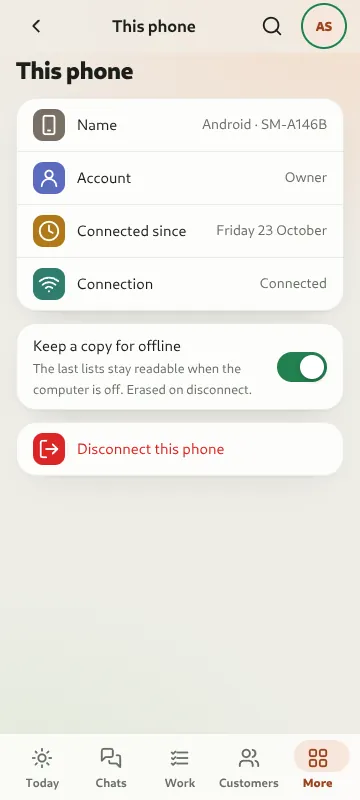
Chats, records and settings stay on the computer. The phone keeps only its own connection key and, if you want, a read-only copy of the latest lists for when the computer can't be reached; you can switch that copy off, and it is erased when the phone is disconnected.
What you can do
The day's work only; settings, channel connections, keys and backups stay in the panel on the computer.
- Today
- One look at what is waiting for you: customers waiting and for how long, the assistant's suggestions, payments to review (with the receipt image; confirm, or reject with a reason), today's tasks and hot leads gone quiet.
- Chats
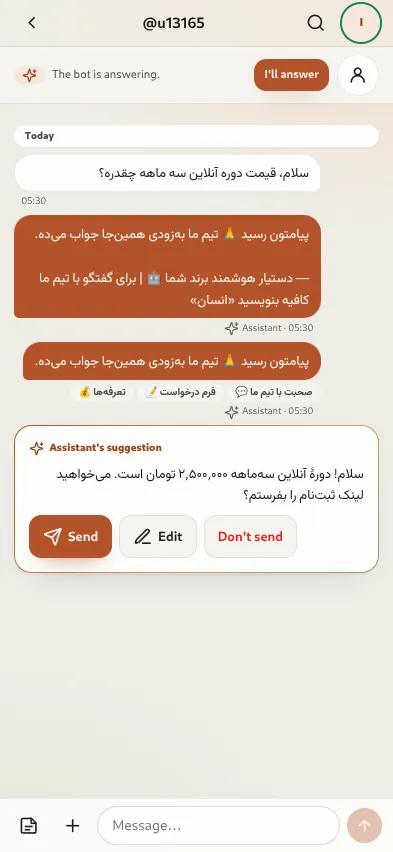
- Instagram, WhatsApp and Telegram in one list, with All, Unread, Waiting and Mine filters, and search. In each chat, send the assistant's suggestion, edit it and send, or reject it; or write yourself, use saved replies, or send a file from the media library (a price list, a video, a pre-recorded voice note). Take a chat over from the assistant or hand it back. The send result is shown as it is: sent, queued, or the reason it was refused (such as WhatsApp's 24-hour window having closed).
- Work
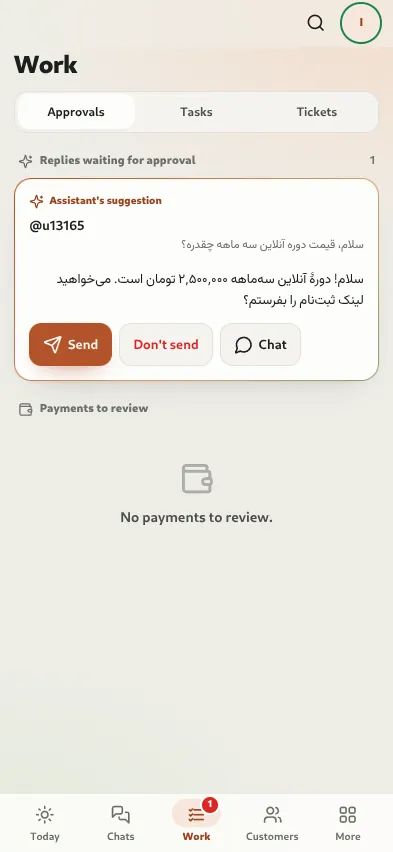
- Three parts: Approvals (every reply and payment waiting, not only today's), Tasks (done, due date, owner and priority) and Tickets (close). With the booking module on, bookings are here too: confirm, cancel, move, mark late or no-show.
- Customers
- A list with search and filters (mine, hot, sales stage). On each customer's card, change the stage, tags, owner, notes and tasks, create a new task or open the chat. From a chat you can send a payment request and, with bookings on, add a new booking from the card.
- Search
- One box for customers, chats, tickets and payments, using the panel's own search, which copes with spelling variants and the wrong keyboard layout.
- Alerts
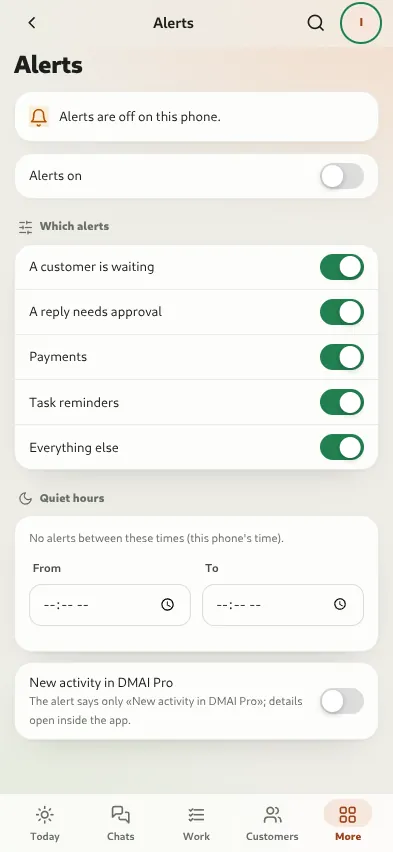
- Switch each kind on or off: a customer is waiting, a reply needs approval, payments, task reminders, bookings (with that module on) and everything else. Quiet hours follow the phone's own time zone. With private alerts, the alert says only “New activity in DMAI Pro” and the details open inside the app. Alerts arrive in the phone's language, a tap opens the right screen, and the unread chat count shows on the app icon.
- And also
- An app lock with Face ID, fingerprint or the phone's passcode (a lock screen for this app on this phone); light or dark and four text sizes; Persian, Arabic and English. On Android: share text or a link from other apps to a customer or save it as a note, and shortcuts by long-pressing the icon.
Setting it up, step by step
- DMAI Pro 1.2.1.0 or later on the business computer.
- A fixed public address: a named Cloudflare tunnel or your own https address, set up in the panel. The installed app is bound to that one address; pairing does not work on a temporary address, and if the address changes every phone must reinstall the app from the new address and connect again.
- Only the owner creates connection codes, in the panel. A code has 8 characters, lasts 10 minutes and works once.
iPhone
- In the panel on the computer, open “Phone app” and press “Show the connection code”.
- Scan the QR code with the iPhone Camera. Safari shows the code without using it up.
- Share → “Add to Home Screen” → “Add”. On iOS 26, keep “Open as Web App” switched on.
- Open the app from the Home Screen and type the code.
- “Turn on alerts” → “Allow”.
Android
- In the panel on the computer, open “Phone app” and press “Show the connection code”.
- Scan the QR code with the camera or Google Lens; the phone connects in Chrome. Or tap “Scan the code” inside the app, or type the code.
- Tap “Install app” (or use the ⋮ menu).
- Turn on alerts.
A connection code lasts 10 minutes and works once. If it runs out, make a “New code” in the panel.
Security in plain words
- A key for each phone
- Each phone gets its own random key when it connects. The key lives only in that phone's secure browser storage, and the computer keeps only its fingerprint. Connection codes are stored encrypted too, and after many wrong codes, pairing pauses for a few minutes.
- The owner can disconnect any phone
- Only the owner sees the list of connected phones in the panel, and can disconnect any of them with one button. Changing a teammate's password or role, or disabling their account, disconnects their phones, and a phone unused for 90 days is disconnected by itself. On disconnect, the key and the offline copy are wiped from the phone.
- Team-member rights at most
- The phone reaches only the day's work and never has more than a team member's rights, even the owner's phone. A “viewer” account stays read-only on the phone and gets no payment alerts. Settings, channels, keys and backups are on the computer only.
- No numbers in alerts
- Card numbers, phone numbers (however they are written), IBANs and e-mail addresses are masked in the alert text; amounts stay. A private alert shows not even that.
The panel guide to the “Phone app” section · DMAI Pro security and privacy
What iPhone can't do, and why
| Feature | Why |
|---|---|
| Scanning a QR code inside the app | Safari doesn't give web apps a QR reader. Scan with the iPhone's own Camera. |
| Connecting in Safari and using the Home Screen app | iPhone keeps their storage apart, so the code must be typed inside the app itself. |
| Alerts in Safari | iPhone gives alerts only to the Home Screen app (iOS 16.4 and later). |
| Sharing from other apps, and icon shortcuts | iPhone doesn't offer them to web apps; they are on Android only. |
| The number on the app icon | It works only when alerts are on. |
- Recording a new voice note or sending a photo from the phone's gallery; you can send voice notes and files from the media library.
- Messages older than the last 80 in a chat; they are in the panel on the computer.
- Settings, channel connections, keys, backups, users and AI settings; these are in the panel on the computer only.
- Sending and approving while the computer can't be reached; the app keeps no send queue, because sending a message or confirming a payment late is not safe.
- An App Store or Google Play version.
Questions
Does the computer have to stay on?
Yes. The phone app does everything on the computer. If the computer is off or offline, the app shows an offline bar, shows the latest lists read-only (if the offline copy is on), and disables the send and approve buttons with the reason.
Do I install it from the App Store or Google Play?
No. The app installs on the home screen from your own computer's fixed address: Safari on iPhone, Chrome on Android.
Can my team use it too?
Yes. The owner creates a connection code for each teammate's account in the panel, and the phone works with that account's role. Alerts meant for one account go only to that account's phones.
The connection code doesn't work. What now?
A code lasts 10 minutes and works once; make a “New code” in the panel. If many wrong codes are entered, pairing pauses for 10 minutes; the owner can reopen it sooner with “Allow pairing again” in the panel.
Alerts won't switch on.
On iPhone, the app must be opened from the Home Screen, not from Safari. If alerts still won't switch on, the app shows the exact reason: private browsing, the push service being unavailable, or the Home Screen app being needed. To try it, press “Send a test alert”.
What if a phone is lost?
In the panel on the computer, disconnect that phone in the “Connected phones” list. From that moment it can no longer reach the computer.
When is it available?
From DMAI Pro 1.2.1.0, available now. If your app is older, update it on the System page or get the new version from the Download page.
Install DMAI Pro on the computer first
The phone app is part of DMAI Pro itself; it isn't installed or bought separately.